Pier
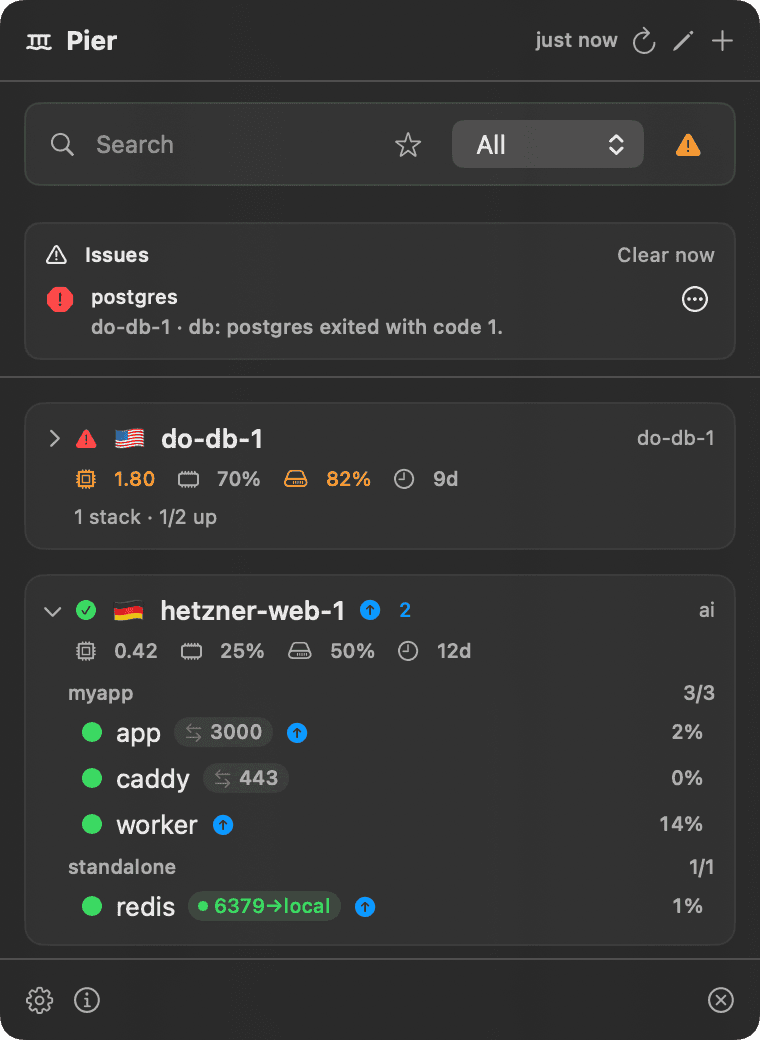
A macOS menu-bar app that looks inside every server — the Docker Compose stacks running there, their health, host trends and live logs — and tells you the moment an image is out of date so you can update it in one click — with every unhealthy container gathered into one issue center. All over the SSH you already use.
Import once, stay in sync. Pull in DigitalOcean and Hetzner — Pier adds new droplets and drops destroyed ones every hour. Agentless and read-only by default; no keys or passwords stored.
brew install --cask andershfranzen/afive/pierOne license · one Mac · all future updates · macOS 14+ · Apple Silicon
Included
Your fleet, at a glance.
- Issue center — every unhealthy container across the fleet, in one place
- Image-update detection — see when a container is behind its registry
- One-click update — pull + recreate a stale Compose service in place
- Port-forward tunnels — open a remote port on localhost in one click
- Click any container to inspect — mounts, env, health, limits
- Search, group, and favorite servers — built for big fleets
- Looks inside the box — Compose stacks + per-container health, live
- Host trends — load, RAM, disk, uptime as numbers or sparklines
- Import DigitalOcean, Hetzner, Linode + Vultr — auto-synced hourly
- Server location flags + the real IP on hover
- Live container logs, tailed inline — no terminal
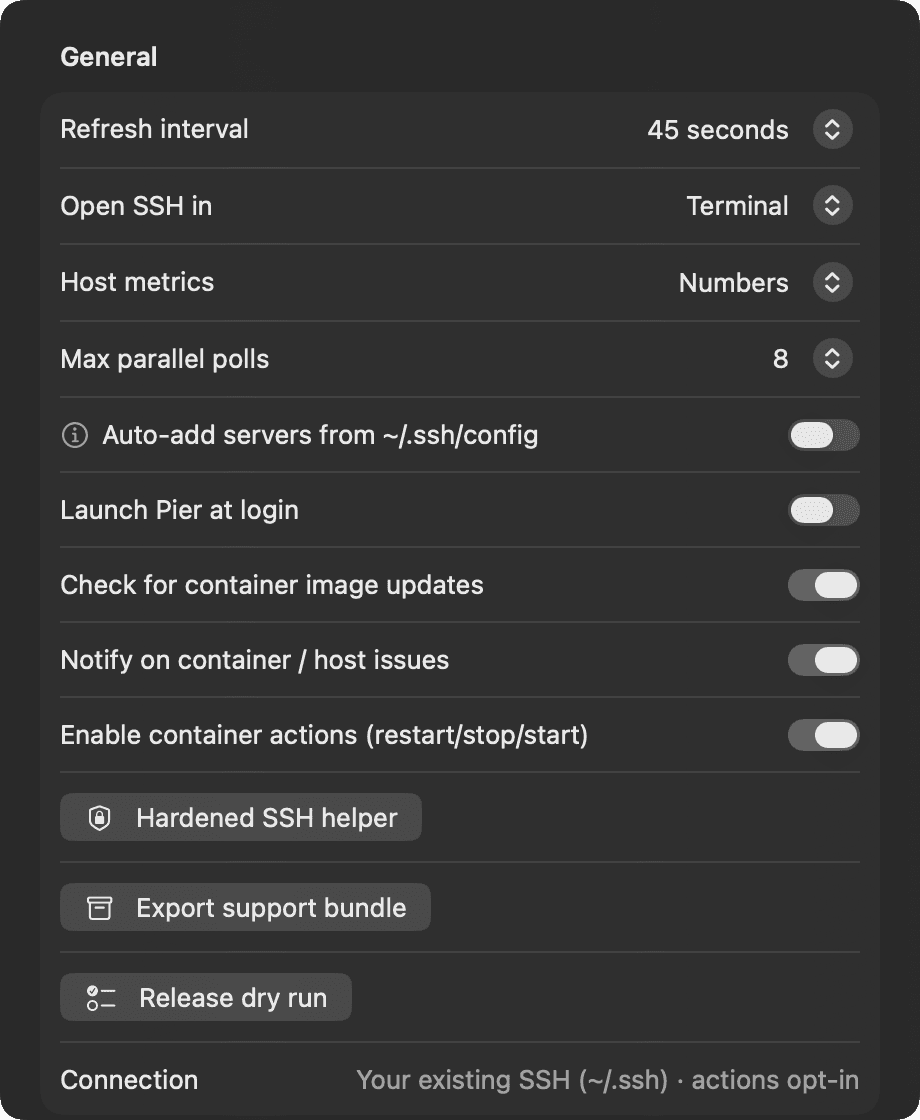
- Hardened SSH — pin a dedicated read-only key per connection
- Agentless over your existing SSH — no keys or passwords stored
- Read-only by default — restart / stop / update are opt-in
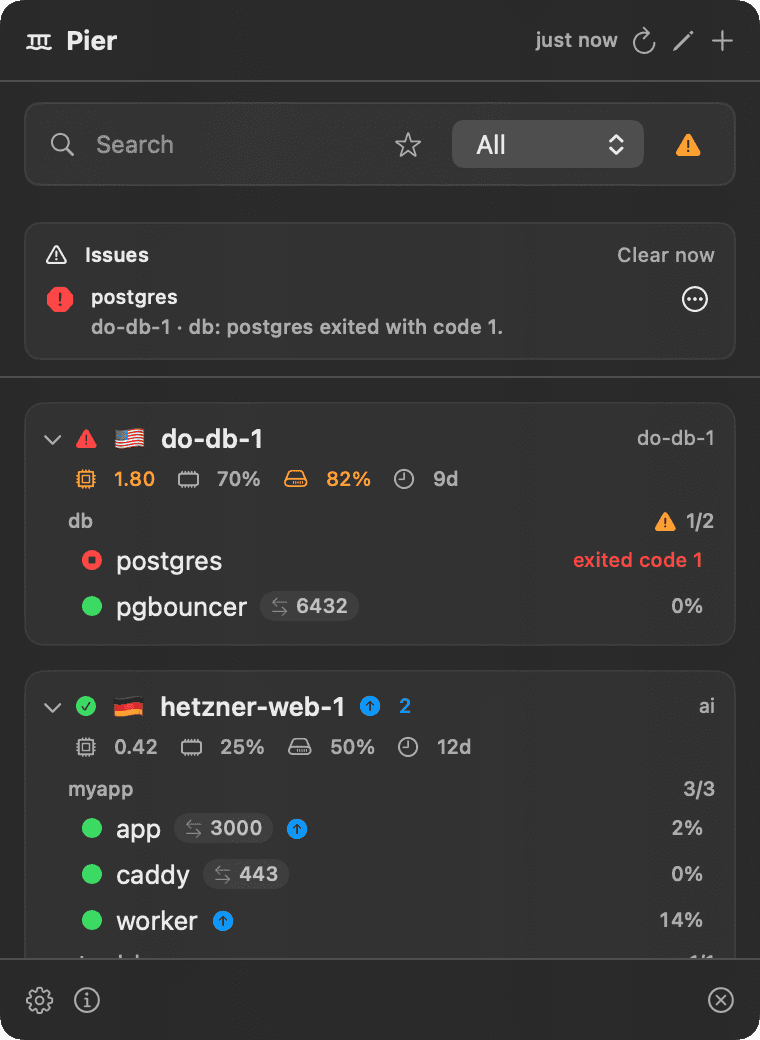
Drill in
Expand a server to see every container.
Compose stacks, per-container state and CPU, ports, and a red flag the moment something exits — like postgres here.
See it work
Logs, inspect, tunnels — without leaving the menu bar.
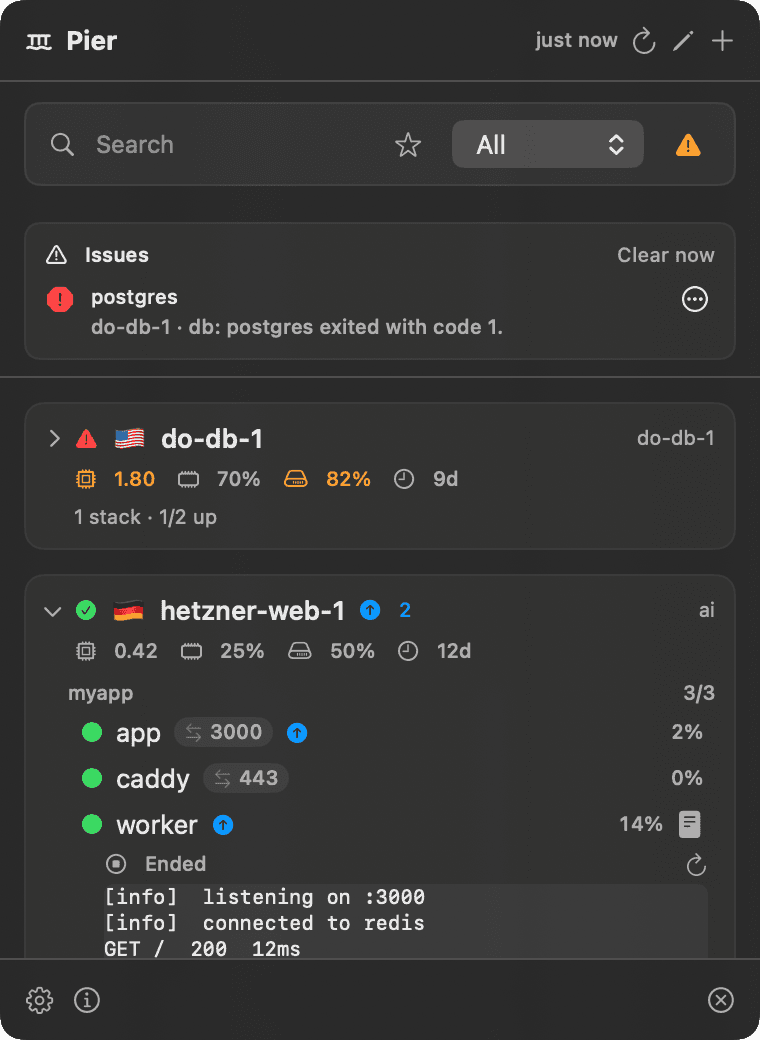
localhost; the blue badge means a newer image is out, one click updates it.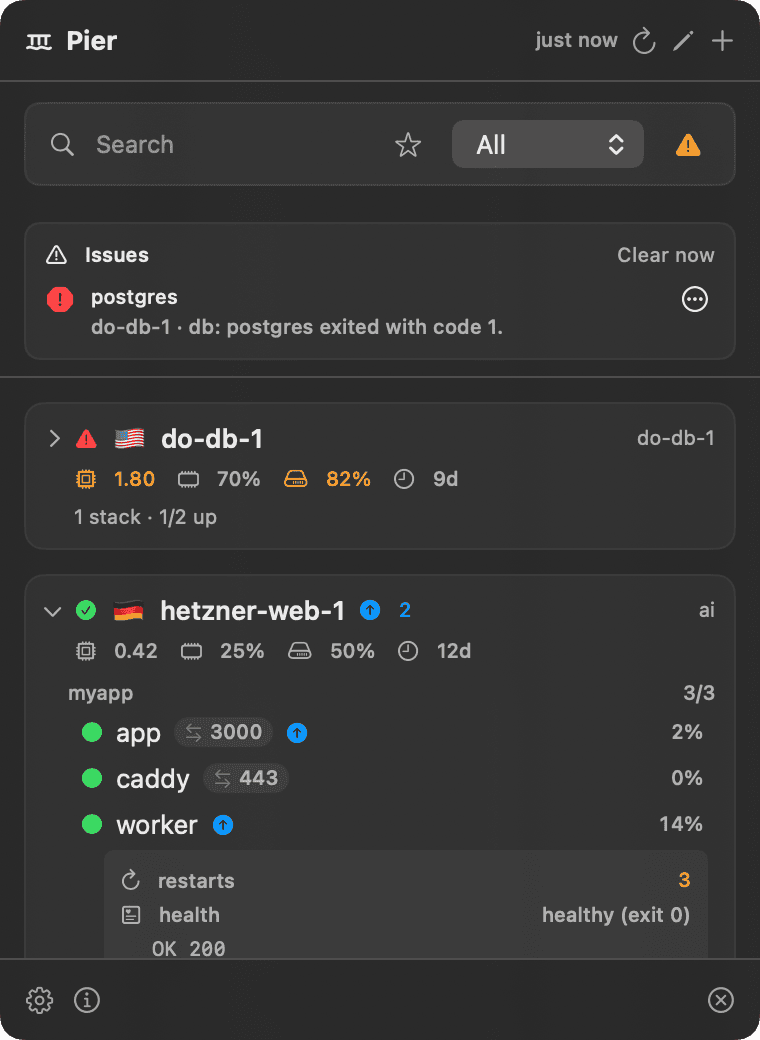
1. After checkout, Stripe returns you to a license key.
2. Paste it into Pier to activate this Mac.
3. The key links to the first Mac that activates it.
FAQ
Small details.
What is Pier for?
Pier gives you one glanceable place for every server you run — what Docker stacks are deployed, whether they're healthy, host load/disk, and live logs — without opening a terminal or a heavy dashboard.
How does it connect?
Over your existing SSH (the same ~/.ssh config and agent you already use). Pier stores no SSH keys and no passwords, and is read-only by default — container restart/stop/start is an opt-in setting.
Do I need to enter my key after updates?
No. Pier saves the license in the macOS Keychain. Updates keep using the same saved license on that Mac.
Are future updates included?
Yes. One Pier license includes all future updates in perpetuity for the Mac activated by that license.
Know what's running, without opening a terminal.
One license activates one Mac and includes every future update. Paste your key once — Pier remembers it.
brew install --cask andershfranzen/afive/pier